Discover how to delete facebook posts in bulk using native tools and trusted extensions. Quick, practical steps for a cleaner, higher-performing profile.

FriendFilter scans your Facebook and shows exactly who's inactive — so you can clean up and boost your reach.
Yes, you can absolutely delete Facebook posts in bulk. The quickest way is through your profile's 'Activity Log,' where you'll find the 'Manage Your Posts' tool. This lets you filter and select a batch of posts to send to the trash, though Facebook often limits how many you can grab in one go.

Ever scroll back on your own timeline and have a "what was I thinking?" moment over a post from five years ago? We've all been there. When old content no longer reflects who you are or what your business stands for, it’s more than just a little embarrassing—it can actively undermine what you're trying to build today.
For marketers, coaches, and small business owners, your Facebook profile is essentially a living portfolio. A timeline cluttered with old, low-engagement posts can signal to the Facebook algorithm that your content isn't consistently hitting the mark. This can actually hurt the reach of your brand-new, high-value posts, making it that much harder to connect with the right people.
A digital cleanup isn't just about deleting things; it's about taking back control of your professional story. This becomes critical in a few common situations:
A clean, focused timeline ensures that the first impression a potential client gets is the right one. It shows you’re active, relevant, and intentional with your brand message.
Beyond just branding, there's a serious security and compliance angle here. Facebook's content moderation is always working, removing a staggering 64.7 million posts for policy violations in Q1 2025 alone. While Meta handles community standards, you are the one responsible for your own content history.
This is especially true for digital agency owners and group admins whose professional reputations are on the line. Knowing how to efficiently manage your content history is a core skill for any serious digital professional. It sharpens your brand, can improve your organic reach, and is a vital part of proactive online presence management.
This process goes hand-in-hand with curating your connections. For a complete profile overhaul, see our guide on how to remove inactive friends on Facebook.

Alright, let's start with the tools Facebook gives you right out of the box. If you’re ready to roll up your sleeves and start cleaning up your timeline, you have two primary options: the Manage Posts feature on your profile and the more comprehensive Activity Log. Both are free and built-in, but it's crucial to understand their quirks and, honestly, their limitations.
These tools are perfect for quick, surgical strikes—like wiping out a few posts from a particular month or untagging yourself from some old photos. But if you're a coach, consultant, or business owner who's been active for years, you’re going to hit a wall pretty fast.
It’s an interesting contradiction. Facebook is incredibly good at removing content at a massive scale when it wants to. In Q3 of 2025 alone, their systems took down 135 million pieces of spam content. You can dig into these trends in Statista's latest report on their content moderation. Yet, when it comes to managing your own content history, they don't exactly hand you the keys to that powerful automation.
This becomes painfully obvious when you actually try to delete Facebook posts in bulk. You're slapped with a selection cap that feels like a throwback to the early days of the internet.
Whether you’re on a desktop or your phone, the process is pretty much the same. You head to your profile, find the 'Manage Posts' button (it's usually right near where you'd write a new post), and from there, you can start filtering and selecting what you want to remove.
The filtering options are surprisingly decent for smaller jobs:
This functionality is a solid starting point for tidying up. For example, a consultant could quickly find and archive all public posts from 2019 that now contain outdated advice. But this is where the convenience often grinds to a halt.
The Big Catch: You can only select and delete 50 posts at a time.
For anyone with a deep history on the platform, that limitation turns what should be a simple task into a tedious, click-heavy marathon. Imagine trying to clear out five years of daily updates. You’d have to repeat the same select-and-delete process hundreds of times. It’s just not built for managing content at scale.
When you're deciding how to tackle your Facebook cleanup, it helps to see the options side-by-side. Facebook’s built-in tools are a starting point, but specialized extensions often provide the efficiency needed for bigger jobs.
Ultimately, the best tool depends on the job. For a quick touch-up, Facebook's native features work fine. For a serious digital deep clean, a dedicated third-party tool is almost always the more practical choice.
Despite their limitations, Facebook’s built-in features definitely have their place. They are the go-to choice when your goal is small, specific, and you don’t mind a little manual work.
Stick with them for tasks like:
However, if your goal is a major overhaul of your account to sharpen your brand image or boost your organic reach, you’re going to need a more powerful approach. If you’re also trying to boost engagement by clearing out inactive contacts, you might find value in our guide on cleaning up your friends list.
When you’re staring down the barrel of deleting thousands of posts, Facebook's built-in tool just doesn't cut it. That 50-post limit is a brutal bottleneck. This is where a dedicated browser extension can save you from hours of mind-numbing clicking.
But let's be real—giving any app access to your Facebook account can feel a little sketchy. The key is to know what to look for so you can pick a tool that’s powerful without being a security risk. You're not just grabbing the first thing you see on the Chrome store; you're making a calculated choice to protect your account.
A trustworthy tool should always work as a browser extension. It should never ask for your Facebook password directly.
When you're evaluating a third-party tool, there are a few non-negotiable features. Think of these as the green flags for a professional, safe solution built for people who take their social media seriously.
For those looking for a comprehensive solution, tools like RedactAI can offer the kind of powerful bulk deletion features you need.
The goal is to find a solution that automates the tedious clicks without ever compromising your account's security. It should feel like an assistant, not a risk.
Truly great tools get that deleting posts is usually just one piece of a bigger puzzle. For example, a platform like FriendFilter doesn't just offer a way to bulk delete posts; it weaves that function into a complete analytics toolkit designed to optimize your entire Facebook presence.
Think about it this way: your old, zero-engagement posts are definitely dragging down your reach. But what about the people on your friends list who never engage with anything you post? Those inactive connections also tell the algorithm your content isn't interesting, which can tank the visibility of everything new you share.
A top-tier tool helps you find these "ghost followers" and safely remove them, which can give your engagement an immediate and noticeable lift. This holistic approach—cleaning up old content and inactive connections—is what separates a simple script from a professional-grade marketing tool. To dig deeper, you can learn more about the most useful Chrome extensions for marketers that help streamline your whole workflow.
Ultimately, picking the right tool isn't just about erasing the past; it’s about building a much stronger foundation for your future growth.
Alright, let's move from theory to action. Once you've picked a solid browser extension like FriendFilter, the actual process of cleaning up your timeline becomes surprisingly simple and strategic. This isn't about indiscriminately nuking your entire history; it's a targeted audit designed to make your profile work for you again.
The real game-changer is moving beyond basic date filters. If you’re a business owner, coach, or consultant, this lets you get incredibly intentional. Instead of just deleting posts from "last year," you can now pinpoint the content that's actually dragging your reach down—the posts that got little to no engagement.
This turns a mind-numbing chore into a sharp, strategic move. Let's say you're a coach who wants to get rid of all the promotional posts for a program you retired two years ago. Or maybe you're a consultant who needs to erase dozens of posts with outdated industry advice. A good tool makes this a five-minute job, not a five-hour headache.
The key to a successful cleanup is to be methodical. Before you click anything, take a moment to think about your goals. Are you trying to sharpen your brand's focus? Remove low-performing content? Or just clear out old memories that no longer fit your public image? Each goal calls for a slightly different tactic.
A fantastic place to start is with engagement metrics. Here’s a workflow I see people use all the time:
This simple three-step diagram visualizes the core process: filtering what you want to find, batching the action, and managing it all securely.
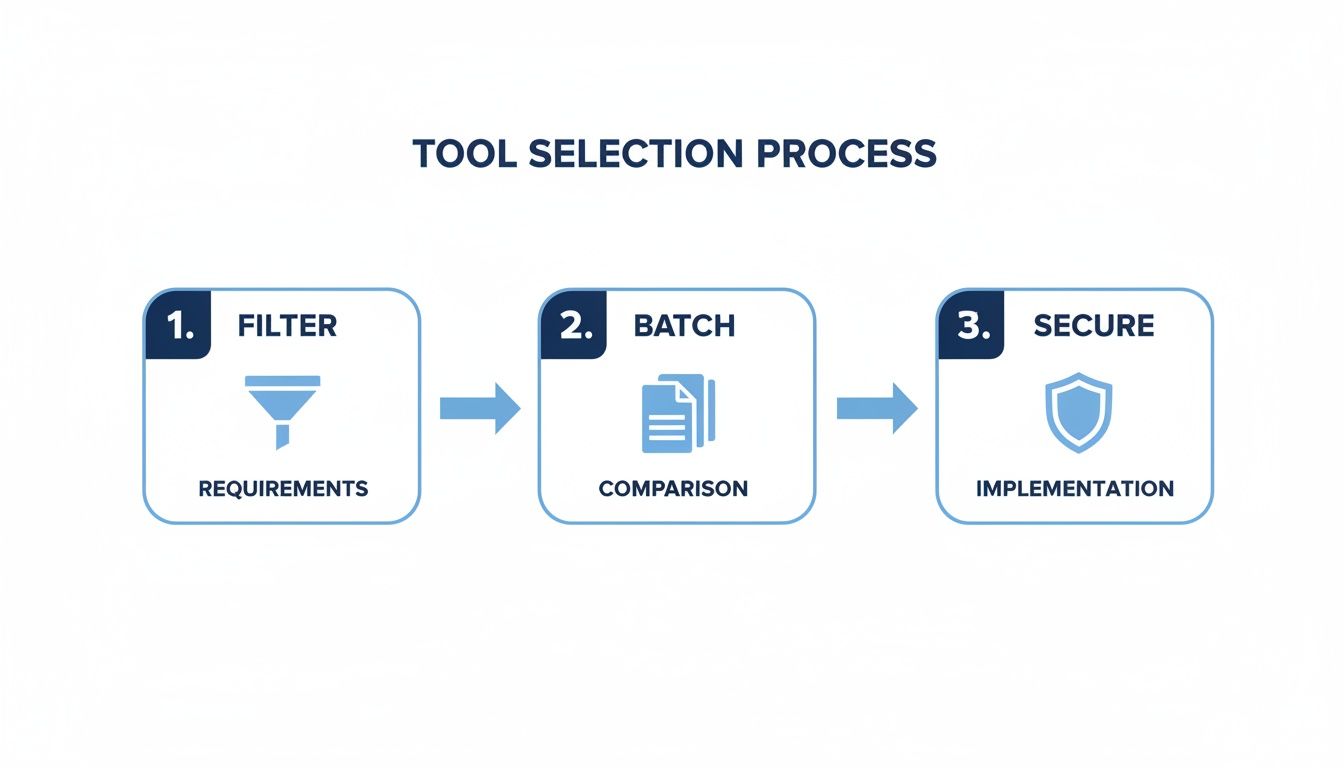
This workflow isn't just about deleting things. It’s about curation—making sure your profile accurately reflects your current brand and expertise.
A one-time cleanup is a great start, but the real benefits come from consistent maintenance. The best tools let you schedule recurring cleanups. For instance, you could set an automated rule to archive any post older than one year that has minimal engagement.
Think of this as automated spring cleaning for your digital storefront. It keeps your timeline fresh, relevant, and optimized for Facebook's algorithm without you having to lift a finger.
This proactive approach ensures your profile is always an asset, not a liability. By consistently trimming the underperforming content, you send strong signals to the algorithm that what you post is valuable and engaging. Over time, this can lead to a noticeable improvement in your organic reach, helping your new content get the visibility it deserves.
For a deeper look into how a clean profile affects visibility, check out our guide on boosting your Facebook reach organically. The principles are identical: a curated, relevant presence performs better.
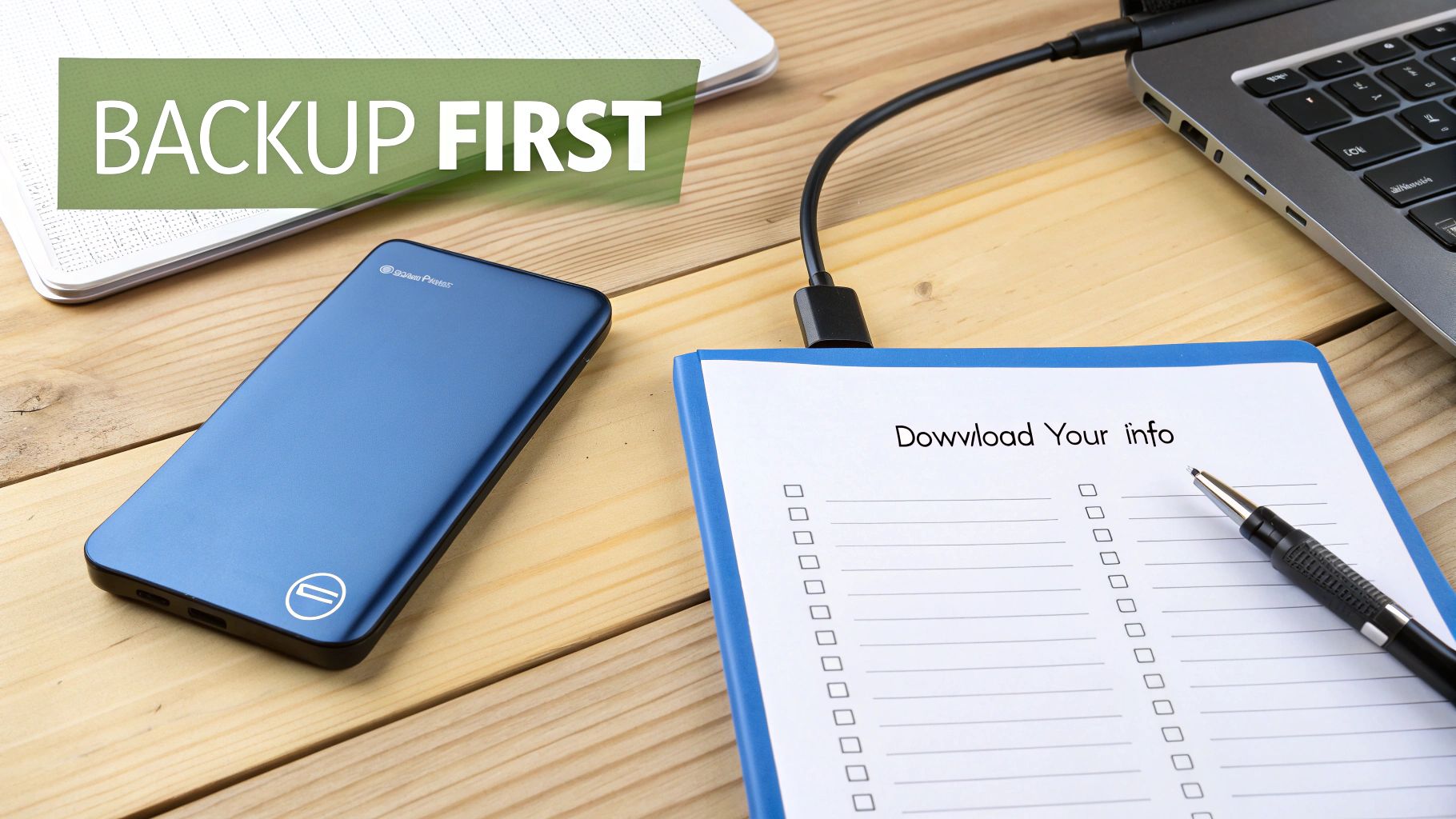
Before you dive in and start purging your old posts, let's pause for a moment. Hitting that delete button is permanent, and a little prep work now can prevent some serious regrets down the road. Think of this as your essential safety check before launching your big cleanup.
The single most important thing you can do is back up your content. You might not care about that photo album from 2015 right now, but future you might feel differently. This is your personal history, and it's worth saving.
Thankfully, Facebook makes this pretty easy with its own "Download Your Information" tool. This feature lets you grab a complete copy of everything—your posts, photos, videos, and more.
Here’s the step-by-step guide to get your data:
This archive is your insurance policy. Once you have it, tuck it away safely on an external hard drive or a secure cloud service. It gives you the peace of mind to delete freely, knowing a private copy is always there if you need it. For a deeper dive, check out our guide on how to download Facebook photos in bulk.
With your data backed up, you're almost ready to go. But I've seen people make a few common mistakes that are easy to avoid if you know what to look for.
Following this simple checklist turns a potentially risky task into a strategic one. You get the clean, professional profile you want without losing important memories or getting your account flagged.
Still have a few lingering questions? Perfect. Let's tackle some of the most common things people ask when they're about to do a major cleanup of their Facebook profile.
The short answer is no. Once a post is permanently deleted, it's gone for good. Facebook doesn't have an "undo" button for this, which is exactly why I always tell people to back up their data first using the "Download Your Information" tool. It’s a lifesaver.
If you're just not sure about a post, use the archive function instead. This is your best friend for posts you might want to see again later. Archiving simply hides them from your public timeline, tucking them away where only you can see them.
From my experience, yes, it often does. Think of it this way: the Facebook algorithm is constantly judging your content. If your profile is filled with years of old posts that got zero likes or comments, it sends a signal that your content, overall, isn't very engaging.
This can seriously drag down the performance of your new stuff.
By getting rid of all that digital dead weight, you're essentially curating a stronger, more impressive content history for the algorithm to look at. This gives your fresh, high-quality content a much better shot at reaching more people right out of the gate.
Of course, a clean timeline is just one piece of the puzzle. To really see results, you need to understand how to increase your Facebook reach organically through a combination of great content and a well-managed friends list.
This is a big one, and the answer is: it completely depends on the extension and who made it. The web is full of sketchy tools, so you have to be careful.
Only stick with reputable tools from trusted developers, like FriendFilter, that are transparent about their privacy policy and use proper security, like 256-bit encryption.
Here's the red flag to watch for: never use a tool that asks for your Facebook password directly. A secure extension works inside your browser and doesn't need to save your login details to do its job. It’s a crucial difference that keeps your account safe. While you're at it, a full profile audit might also include learning how to remove inactive friends on Facebook with tools that follow these same safety standards.
Ready to take control of your Facebook presence? FriendFilter gives you the tools to clean up old posts, remove inactive friends, and boost your engagement. Stop letting dead content drag down your reach. Start your free 14-day trial today and see the difference a clean profile makes. Get started at https://friendfilter.com.