Learn how to delete facebook photos in bulk quickly and safely with simple steps and practical tips.

FriendFilter scans your Facebook and shows exactly who's inactive — so you can clean up and boost your reach.
Thinking about how to delete Facebook photos in bulk but feeling a bit overwhelmed? I get it. It can feel like a huge task, but the easiest place to start is right inside Facebook itself with the "Manage Activity" tool. It lets you select and trash up to 50 photos at a time, which is a lifesaver for quick, targeted cleanups without messing with third-party apps.
Before we dive into the step-by-step, let’s chat about why this is such a smart move, especially for professionals like you. If you're a marketer, coach, or small business owner, a messy Facebook profile is more than just disorganized—it's a missed opportunity to connect with your ideal clients.
Old photos, outdated event pics, or irrelevant memes from 2012 can seriously water down your brand message. They create a confusing first impression for potential clients and can even hurt the visibility of your new, important posts. Think of it as digital housekeeping; you're clearing out the clutter so your best content can shine.
A clean, curated profile ensures that when a prospect checks you out, they see a focused snapshot of who you are and what you offer today, not a random scrapbook from five years ago. This simple cleanup can instantly make your profile a more powerful tool for attracting the right people and increasing engagement.
Cleaning up your photos is a powerful way to refine your audience, protect your privacy, and make sure your timeline actually reflects your current brand. It’s all about taking charge of your digital story. In a world of constant algorithm changes, that feeling of control is huge.
And it turns out, a lot of people are craving a cleaner digital slate. Research shows that a staggering 61.7% of users have thought about leaving Facebook, often because of privacy issues and feeling overwhelmed by content. One of the biggest things holding them back? The fear of losing memories. In the same study, 35.1% said "not wanting to lose pictures" was a major reason they stayed. You can see the full breakdown in the report on the 'Delete Facebook' phenomenon.
This really highlights how much we value our photos. That’s why a deliberate, controlled cleanup feels so empowering—you get to decide what stays and what goes, making your profile work for your business goals.
Beyond just looking more professional, a photo cleanup can have a real impact on your organic marketing. When you remove content that no longer resonates with your ideal client, you start to see some tangible benefits.
By decluttering your visual history, you’re not just deleting pixels. You're crafting a stronger, more professional first impression that aligns with your current business goals. It's a foundational step in smart social media management and a key part of increasing your Facebook reach organically.
When you've decided it's time for a serious photo cleanup, your best bet is to start on a desktop. The "Manage Activity" tool is your built-in command center for this, and it’s surprisingly powerful once you know where to look. Honestly, it’s the most direct and safest way to get the job done without needing third-party apps.
Here’s the step-by-step guide:
First, head over to your profile page. Look for the three-dots menu icon, usually tucked under your cover photo, and give it a click. From there, select Activity Log. A menu will pop up on the left side of the screen. Navigate to Your Posts, and then click on Photos and Videos. This is your ground zero—every photo and video you've ever posted is laid out right here, ready for you to manage.
This is where the real magic happens. Instead of being faced with a decade's worth of memories all at once, you can use filters to narrow things down. It’s a lifesaver, especially if you’re looking to get rid of specific types of content, like old campaign assets or photos from a particular event.
For example, a business coach might want to filter by date to remove all posts from before they rebranded. You can slice and dice your content by:
These filters turn a marathon scrolling session into a quick, targeted sprint. You can zero in on precisely what needs to go.
This diagram gives you a good visual of the goal here: transforming a cluttered, chaotic profile into something clear and intentional.
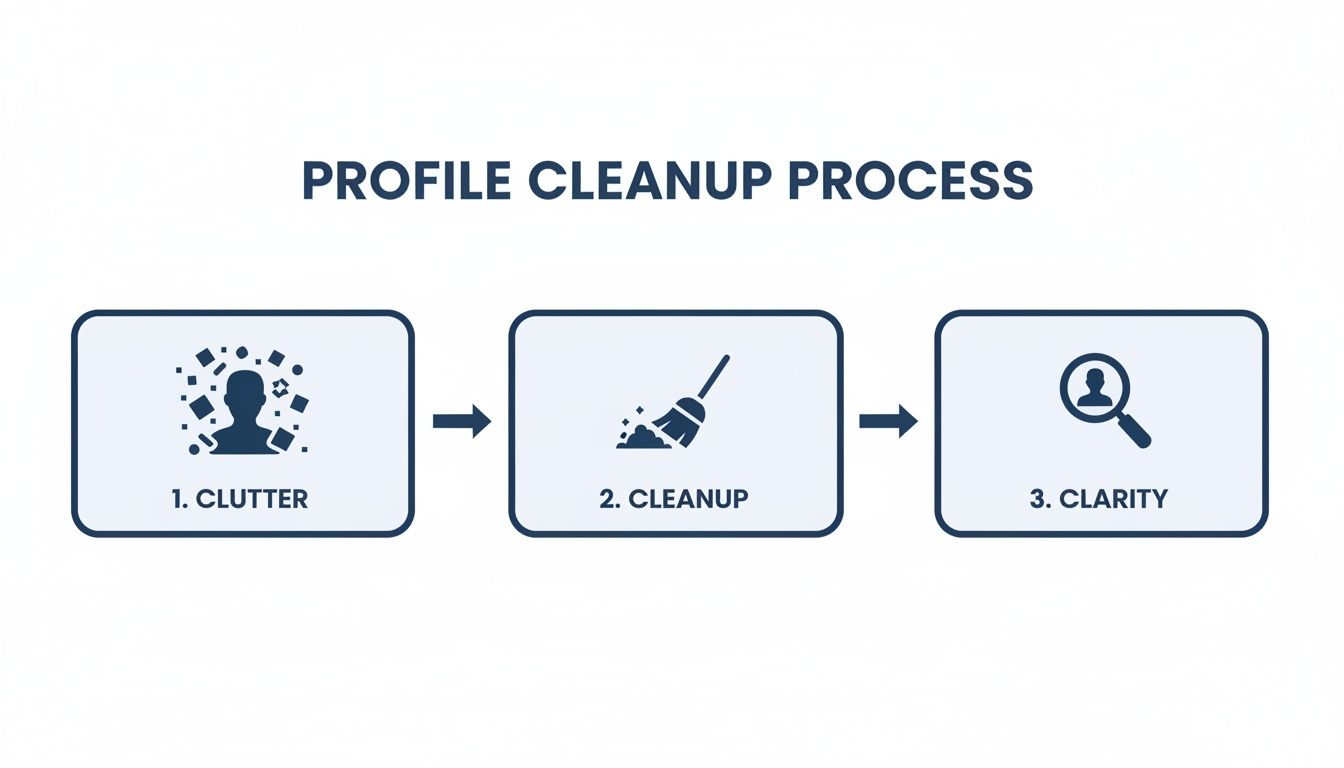
This isn’t just about deleting stuff; it's about curating your digital history so it powerfully reflects who you are today.
Once you've filtered your view, you'll see a little checkbox next to each photo. This is where you start making your selections. Facebook lets you check off up to 50 items at once. No, it’s not a one-click-nuke-everything button, but it’s a whole lot better than deleting photos one by painful one.
After you've selected a batch, you’ll see two options appear at the top: Archive and Trash.
My Advice: If you're even a little unsure, hit Archive. This hides the photos from public view but keeps them in a private folder only you can see. Think of it as a holding pen. If you're positive you want them gone forever, Trash is your button. Items in the trash are permanently deleted after 30 days.
This simple, two-option system gives you full control. By working in batches, you can be thoughtful about what stays and what goes, preventing any accidental deletion. For anyone trying to improve their Facebook reach organically, a clean, focused profile is step one. It tells both your followers and the algorithm that what you're posting now is what's truly important.
To help you decide on the best approach, here’s a quick look at the native tools Facebook offers. Each has its own strengths depending on what you’re trying to accomplish.
Ultimately, the right tool comes down to your goal. For a deep, surgical cleanup of your timeline, Manage Activity is king. For a quick tidy-up of recent posts or removing a whole event's worth of photos, the other methods are more efficient.
Let's face it, as a busy coach or entrepreneur, you manage your brand on the go. Cleaning up your Facebook presence from your phone is a necessity, and luckily, the mobile app has pretty much all the power you need. The process mirrors the desktop version, but the mobile interface has its own layout that's worth getting familiar with.

I'll walk you through how to delete Facebook photos in bulk right from your phone. We'll be using the same core tools—Activity Log and Manage Activity—just getting to them a bit differently. It's the perfect way to keep your profile looking sharp and professional, no matter where you are.
First things first, we need to find your Activity Log. Facebook has it tucked away, but it's simple once you know where to look.
This brings you to a general overview of your recent actions. To dig into your photos, tap on Manage Your Posts. Think of this as your mobile command center for all the content on your timeline.
Once you're in the Manage Posts screen, you'll see everything you've ever posted. To zero in on just the images, tap the Filters button at the top. From there, select Categories, and then choose Photos and Videos.
Now for the hands-on part. You can scroll through your photos and start tapping the checkbox next to each one you want to remove. Just like on the desktop site, you can select up to 50 items at a time. It might feel a bit more tedious tapping on a screen, but it’s a world of difference compared to deleting them one by one.
Here’s a strategic tip: think carefully about whether to Archive or Trash your photos. For example, if you're getting rid of outdated promotional images you know you'll never need again, sending them straight to the Trash is fine. But for personal photos that no longer align with your professional brand, Archive is often the smarter move. It makes them invisible to everyone but you, just in case you ever want them back.
After you've checked off your selections, you'll see the Trash and Archive options appear at the bottom. One tap and a quick confirmation later, and your profile is that much cleaner.
This kind of digital tidying goes hand-in-hand with smart audience management. It's just as important to manage your Facebook friend list as it is to manage your content. A polished profile helps in increasing your Facebook reach organically, and if you really want to boost efficiency, remember to periodically clean inactive friends to make sure your content is seen by people who are actually engaged.
Let's be real—sometimes, clicking through photos 50 at a time just isn't going to cut it. When you need to do a major overhaul, like wiping a whole gallery from an old event or clearing out a past marketing campaign, deleting the entire album is by far the most efficient way to go.
This is the fastest method to delete Facebook photos in bulk, but only if they’re already grouped together in a single collection.
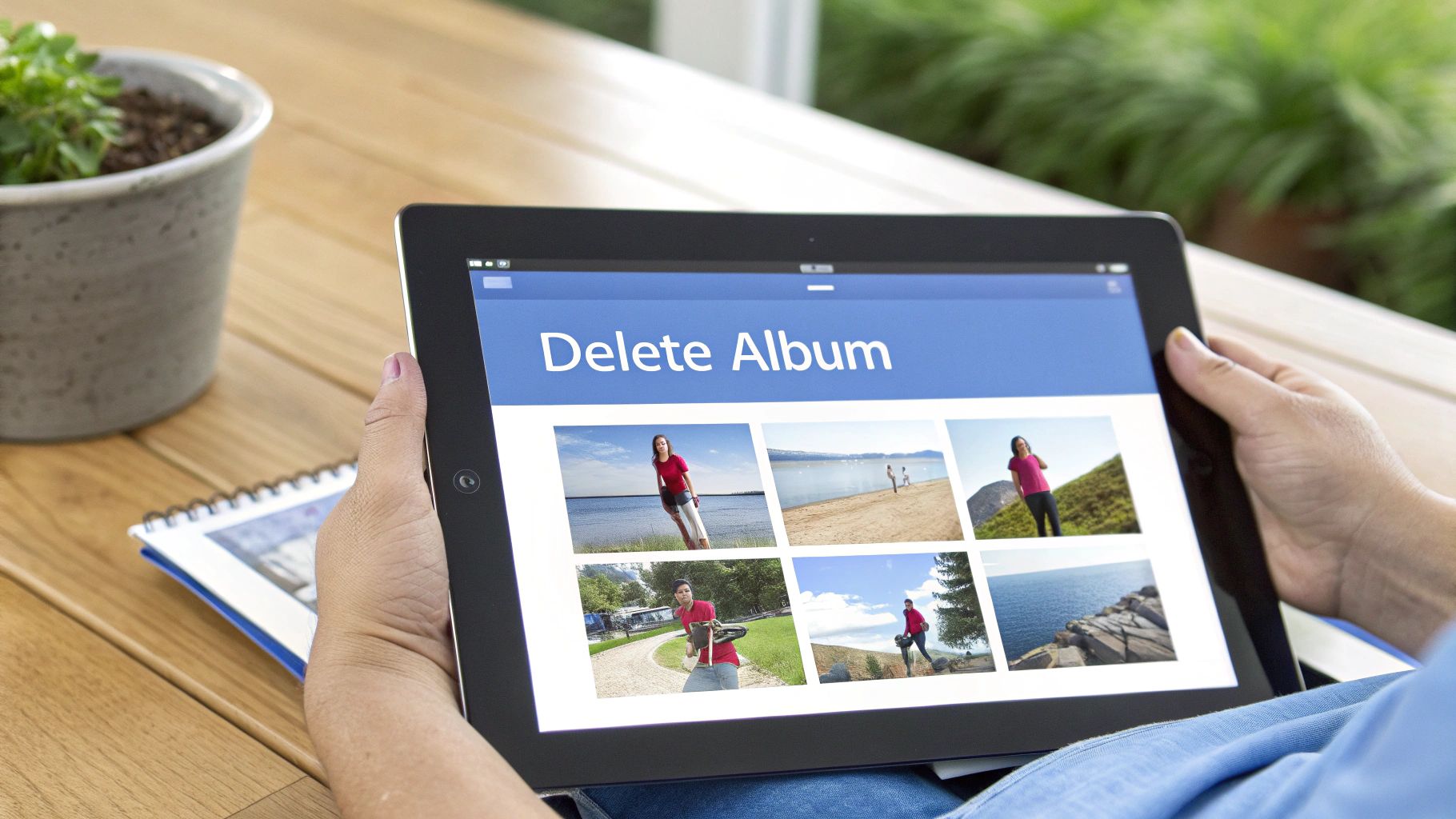
A word of warning: this method is powerful and permanent. Once you delete an album, it’s gone for good. If you have even the slightest hesitation, back those photos up first. We have a complete walkthrough on how to download your Facebook photos in bulk that can help you save everything before you take the plunge.
Ready to clear things out? This whole process is refreshingly straightforward and takes less than a minute on a desktop.
Here’s how to do it:
Start by heading to your main Facebook profile. Look for the Photos tab, which sits right below your cover photo next to 'Friends' and 'Videos'. Click it. Inside the Photos section, you’ll see another set of tabs; click on Albums to get a full view of all your collections.
You're now looking at a gallery of everything you've ever organized into an album.
Okay, here's the easy part. Find the album you want to get rid of and hover your mouse over its thumbnail. A three-dot menu icon will pop up in the top-right corner.
Click those three dots. A small menu will appear with the option to Delete album. Click it, and Facebook will ask you one last time if you're sure you want to proceed.
Heads Up: Facebook won't let you delete certain default albums it creates automatically, like 'Profile Pictures,' 'Cover Photos,' or 'Mobile Uploads.' You can't remove the album itself, but you can still go inside these folders and delete the individual photos using the "Manage Activity" method we covered earlier.
Once you confirm the deletion, the entire album and every single photo inside vanishes. It’s the ultimate time-saver for making big, sweeping changes to your digital footprint and keeping your profile clean and current.
When you hit that 'delete' button, it feels final. But in reality, it’s just the start of a process on Facebook's end. Think of it less like shredding a document and more like putting it in a locked recycling bin for a while before it's truly gone.
Once you move a photo to the trash, Facebook hangs onto it for 30 days. This is your safety net. If you have second thoughts or accidentally zapped something important, you can dive back into your Trash folder and restore it. Once those 30 days are up, however, the photo is officially marked for permanent deletion.
Even after that 30-day grace period, your photos aren't instantly vaporized. Facebook's complete data deletion process can take up to another 90 days to fully remove the content from its backup systems. It's a thorough process designed to protect against massive data loss, but it means your old pictures can stick around long after you've said goodbye.
The catch? Content you've been tagged in by others—like old party photos on a friend's profile—can still linger on their timelines. This is a real source of frustration for professionals, because while the photos you uploaded are gone, these echoes can persist, subtly chipping away at your brand image. You can learn more about what really happens when you hit delete on Facebook.com.
This leads us to a major headache for anyone managing a professional online presence: ghost tags. These are tags on photos posted by other people. Even if you untag yourself or delete every photo from your own timeline, those tags can remain on their profiles. Since you don't own their content, you can't delete it.
Why is this such a big deal for your business?
A clean profile isn't just about what you post; it's about managing everything you're associated with. Proactively untagging yourself from unwanted photos is a non-negotiable step in maintaining a professional digital footprint.
A complete cleanup means going beyond your own uploads. You have to actively police your tags to make sure your online presence is truly yours. A polished profile is crucial for increasing your Facebook reach organically, and that includes what other people have tagged you in. By taking the time to clean up inactive friends and manage those pesky tags, you’re building a more focused and effective presence.
Knowing how to delete Facebook photos in bulk is a great start, but it’s really just one piece of a much larger puzzle. If you’re a marketer or coach trying to build a real business, the conversation needs to shift from "What should I get rid of?" to "Who am I actually trying to reach?"
This way of thinking turns a simple photo cleanup into a powerful strategic move: auditing your friend list. You’ll probably find that many of those old, cringey, or just plain irrelevant photos are tied to connections who haven't been active in years. Finding and removing these "ghost followers" does more than just make your profile look better—it sharpens your audience and boosts engagement.
Let's be honest, a big friend count packed with inactive accounts is a vanity metric. Worse, it actively tanks your organic reach.
Here’s why: when you share something new, Facebook's algorithm shows it to a small fraction of your audience first. If that initial group is full of people who never log on or interact, your post gets crickets. This tells the algorithm your content isn't interesting, so it stops showing it to anyone else, including your ideal clients.
This is exactly why a smart photo cleanup often kicks off a bigger audience overhaul. As you sift through old content, pay attention to who was engaging. This naturally leads you to a more focused approach to managing who you're connected to. A smaller, highly engaged friend list is infinitely more valuable than a massive, silent one.
Think of it this way: a clean profile paired with a curated audience tells the algorithm that your content is relevant and that the people you're connected to actually want to see it. This synergy is the key to breaking through the noise and making your lead generation efforts more effective.
The problem of disengaged followers gets even bigger when you consider the sheer number of fake accounts out there. For perspective, in just one quarter, Facebook removed an eye-watering 698 million fake accounts.
That statistic should be a wake-up call. Imagine that 10-20% of your friends are actually bots, dragging down your engagement and messing with your analytics. You can discover more insights about Facebook's account removals on Statista.com.
Removing photos connected to these ghost accounts isn't just about tidying up; it's about reclaiming the integrity of your audience data. It helps to remember how platforms transform your personal data into social leverage, which can influence why certain content sticks around for so long.
Ultimately, the best strategy is a proactive one. Don't wait for the algorithm to bury your content because of low engagement. Take control. A full cleanup, like the one we detail in our guide to manage your Facebook friend list, ensures your hard work reaches people who will actually listen, react, and convert.
You’ve got questions, and I’ve got answers. When it comes time to clean up a Facebook profile, these are the things people ask most often.
Nope, they won't. Facebook doesn't send out any kind of alert when you delete a photo you've posted, even if other people are tagged in it. The picture just disappears from your timeline and theirs, nice and quiet. It's perfect for a low-key cleanup without drawing any attention.
Yes, but you have a pretty short window. When you delete photos, they aren't gone forever right away. Instead, they get moved to your account's 'Trash' folder.
They'll stay there for exactly 30 days. This gives you a bit of a safety net in case you have second thoughts. Once that month is up, they are permanently deleted, and there's no getting them back.
My advice? Use the Archive feature for a no-regrets cleanup. It hides photos from everyone but you, keeping them safe without cluttering your public profile. It's the perfect middle ground between keeping everything and deleting permanently.
Think of archiving as putting a photo into private storage. It gets taken off your public timeline and moved to a folder only you can see. It's a great way to tidy up your profile without permanently losing memories.
Deleting, on the other hand, is the first step toward saying goodbye for good. It sends the photo to the trash for that 30-day grace period before it’s gone forever.
There is. If you're using Facebook's "Manage Activity" tool, you're capped at selecting and deleting 50 items at a time. It’s not a one-click solution for thousands of photos, but it's a huge improvement over deleting them one by one.
For a massive clear-out, your best bet is to delete an entire album. This removes all the photos inside in one go, no matter how many there are.
A clean, focused profile is one of your best assets for connecting with the right people. To take that cleanup a step further, you can use a tool like FriendFilter to find and remove inactive friends, making sure your content always gets in front of an audience that cares. Check out their free trial at https://friendfilter.com.